
Organizing Pages and Folders
The documentation editor lets you build and arrange your site's navigation by creating pages and folders in a flexible tree. Clear organization helps readers find what they need quickly and gives your docs a logical, professional structure.
How It Works
•Create new pages to hold individual documentation topics within your site's tree.
•Group related pages inside folders to form sections and subsections in your navigation.
•Rename and delete pages or folders at any time to keep your structure current.
•Drag and drop items to reorder them or nest them under other folders.
•Changes to the navigation tree appear in your live preview before you publish.
Steps
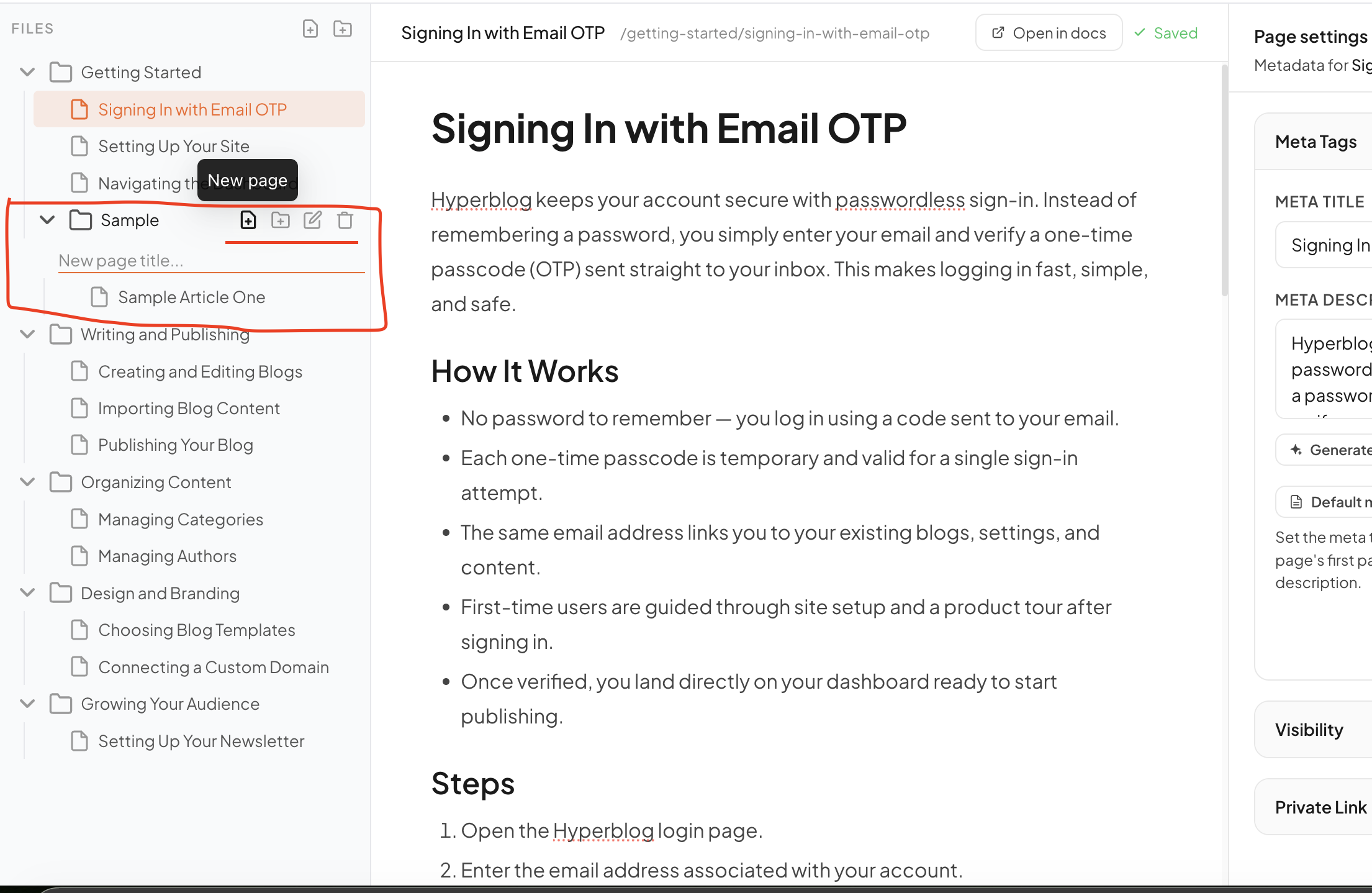
1.Open the documentation editor from your dashboard to view the current page and folder tree.
2.Click the add button to create a new page or folder, then give it a clear, descriptive name.
3.To rename an item, select it and edit its title; to remove it, choose the delete option and confirm.
4.Drag any page or folder up or down to reorder it, or drop it onto a folder to nest it inside.
5.Review the structure in the live preview, then publish to update the public navigation.
Page and Folder Actions
Action | What It Does | Applies To |
|---|---|---|
Create | Adds a new item to the navigation tree | Pages and folders |
Rename | Changes the displayed title | Pages and folders |
Reorder | Drag to change position in the list | Pages and folders |
Nest | Places a page or folder inside another folder | Pages and folders |
Delete | Permanently removes the item from the tree | Pages and folders |
Tips
•Use folders to group related topics so readers can scan your navigation at a glance.
•Keep page names short and descriptive — they double as navigation labels on your published site.
•Order your most important pages near the top so visitors see them first.
Preview your site after reordering to confirm the navigation flows the way you expect before publishing.
Deleting a folder removes the pages nested inside it, so move any pages you want to keep before deleting.
Troubleshooting
•If a new page does not appear, refresh the editor to make sure the latest tree is loaded.
•If drag-and-drop will not nest an item, drop it directly onto the folder rather than between pages.
•If changes are missing on your live site, confirm you published after editing the navigation.
•If a deleted page reappears, check that the deletion was confirmed and the editor finished saving.
Related topics: Edit Documentation Pages, Preview and Publish the Site, Configure Branding and General Settings.